
Upscale 720p or 480p Video to 1080p (Free, Online)
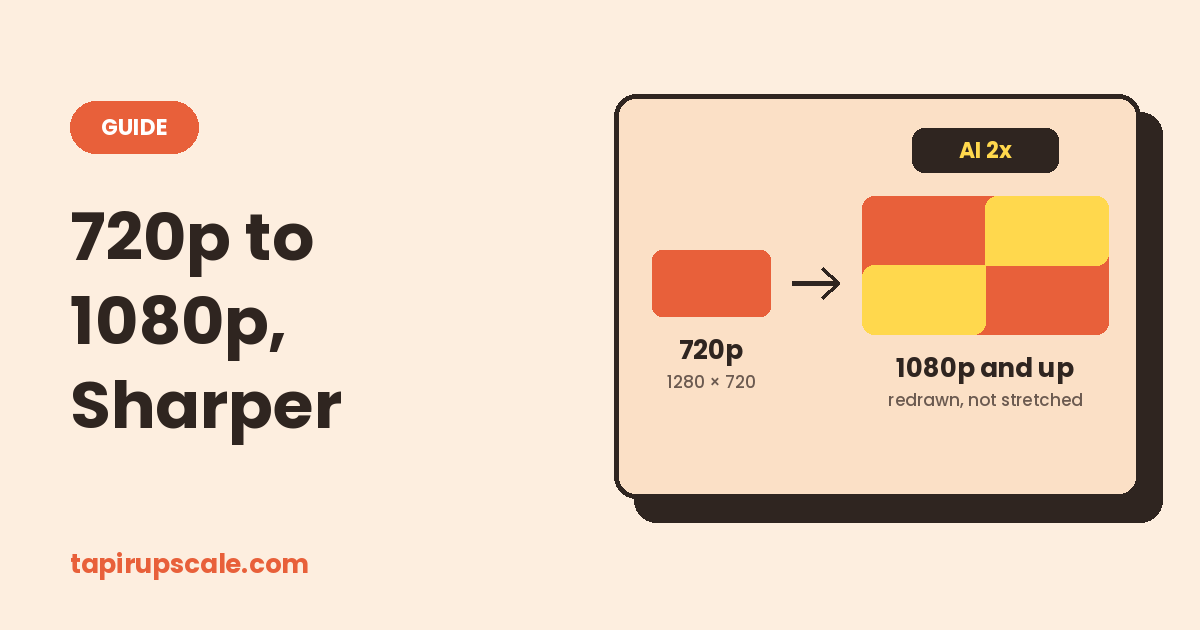
To take a 480p or 720p video to 1080p, skip the converter. A converter only stretches each frame, so the file says 1080p and looks exactly as soft as before. An AI upscaler redraws edges, text and texture at the new size.
You can do it right here, free, with no sign-up and no watermark. Add your video below, pick 2x, and compare one frame with the original before you process the whole clip.
Upscale your video now
Free in your browser, or on a cloud GPU with Pro.
- No sign-up
- No watermark
- Up to 4K
Which setting for your video 📐
The upscaler works in 2x and 4x steps, so you land on 1080p or just above it:
| Your video | Pick | You get |
|---|---|---|
| 720p (1280 × 720) | 2x | 1440p (2560 × 1440) |
| 540p (960 × 540) | 2x | 1080p (1920 × 1080), exactly |
| 480p widescreen (854 × 480) | 2x | 1708 × 960 |
| 480p 4:3 (640 × 480) | 2x | 1280 × 960 |
| 360p (640 × 360) | 4x | 1440p (2560 × 1440) |
A 1440p file plays everywhere a 1080p file does, and YouTube, TVs and editors scale it down cleanly. For 480p, 2x is the practical choice. 4x gives a much bigger frame, but it takes far longer and has to guess a lot more.
Need exactly 1920 × 1080? 🎯
Upscale first, then export at 1080p from any editor or from HandBrake. Shrinking an AI-upscaled frame down to 1080p keeps the detail that was redrawn. Stretching 720p up to 1080p never adds any.
Most uploads don't need this step. YouTube and social apps accept 1440p as it is.
How to do it 🚀
- Add your video in the box above. MP4, MOV, WebM and MKV work, up to 2 GB and one hour.
- Choose 2x (or 4x, following the table).
- Pick a model. The i next to Model explains each one. There is one made for live-action footage and one for anime and cartoons.
- Render the preview. You get one frame, original against upscaled, and a time estimate for the whole video. Use a hard frame: a face, small text, hair.
- Upscale and download. You get an MP4 with the audio carried over.
If the preview looks harsh, lower Detail and render it again. If it looks better than the original, the whole video will too.
How long it takes ⏱️
Videos at 720p and below go through the full AI model, which gives the best result and is also the heaviest work. In the free version that work runs on your own graphics card. A short clip on a recent laptop or desktop is fine. A long one can keep the machine busy for a while, and the tab has to stay open.
For long videos, a phone or an older laptop, Pro runs the same job on a cloud GPU at our highest quality. You see the price before you pay, you can close the tab once the upload is done, and if a job fails the full price goes back to your credit. Credit starts at $5 and never expires.
What 1080p won't fix ⚠️
Upscaling sharpens what was recorded: edges, text, faces that fill a fair part of the frame, the softness that comes from a low resolution. It can't bring back a missed focus, motion blur or a face that is only a few pixels wide. How to unblur a video shows how to tell which problem you have.
Quick answers
Is there a free 720p to 1080p converter that improves quality? A plain converter can't, because it only resizes. An AI upscaler can. The one on this page is free in your browser.
Is upscaled 1080p as good as real 1080p? No. It looks clearly cleaner than stretched 720p, but it can't show detail the camera never recorded.
Can I upscale 480p to 1080p? Yes. Use 2x for 1708 × 960, which is close to 1080p, or pick 4x and then export at 1920 × 1080.
Does it work on a phone? The free version can on phones with WebGPU, but it is slow. Pro works on any device because the processing happens in the cloud.
Got a video to sharpen?
Free in your browser, or on a cloud GPU with Pro.
- No sign-up
- No watermark
- Up to 4K