
DaVinci Resolve Upscale: Super Scale vs Free Version
DaVinci Resolve has two ways to make a clip bigger. The free version scales footage to a larger timeline with standard resize filters, which fills the frame but adds no detail. The AI way, Super Scale, rebuilds detail with the DaVinci Neural Engine, but it's only in DaVinci Resolve Studio, a one-time purchase of about $295.
If you're on the free version, or just need a few clips sharper, you can upscale the clip before it goes into Resolve. Add it below, compare a preview frame with the original, and download an MP4 to import. It's free, with no sign-up and no watermark.
No Studio? Upscale the clip before you import it
Free in your browser, or on a cloud GPU with Pro.
- No sign-up
- No watermark
- Up to 4K

Upscale first, then edit in Resolve (free version) 🚀
This gives you AI detail without Studio:
- Upscale the original clip in the box on this page. Pick 2x: 1080p becomes 4K, 720p becomes 1440p.
- Check the preview on a face or some text before processing the whole clip.
- Import the new MP4 into the Media Pool.
- Already edited with the low-res clip? Right-click it in the Media Pool, choose Replace Selected Clip and pick the upscaled file. Your cuts stay in place because the length is the same.
- Set the timeline to the new size: File > Project Settings > Master Settings > Timeline resolution, for example 3840 × 2160.
- Add titles and graphics after. Resolve draws them at the timeline resolution, so they stay sharp.
The free version of Resolve exports up to UHD 4K (3840 × 2160), which matches what the upscaler outputs.
Scaling to 4K in the free version (no AI) 🎬
If a clip only has to fill a 4K frame, the free version can do that:
- Open File > Project Settings > Master Settings and set Timeline resolution to 3840 × 2160 Ultra HD.
- Go to Image Scaling. Set Resize Filter to Sharper, the crispest of the standard options.
- Under Input Scaling, choose Scale full frame with crop so lower-resolution clips fill the frame.
- On the Deliver page, render at 3840 × 2160.
What you get is a resize: the pixels are stretched, not rebuilt. It's fine for short b-roll, and soft on faces and fine texture. Rendering a 1080p timeline at 4K does the same thing.
Super Scale in DaVinci Resolve Studio 🧠
If you own Studio, here's where Super Scale is:
- In the Media Pool, right-click the clip and choose Clip Attributes.
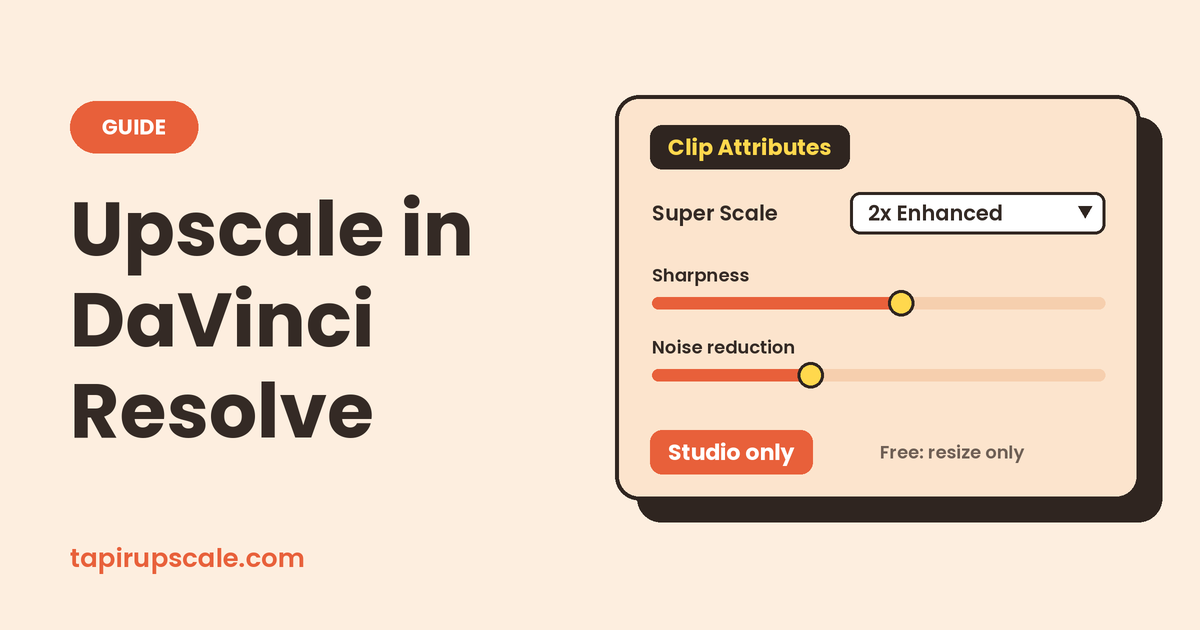
- On the Video tab, set Super Scale to 2x, 3x or 4x. Newer versions also have 2x Enhanced, which adds Noise Reduction and Sharpness controls.
- Set your timeline to the larger resolution in Project Settings.
- Play back or render. Super Scale is heavy, so expect slow playback; rendering the clip, or caching it, helps.
Start with 2x Enhanced at medium sharpness. Turn sharpness down if edges get halos or skin looks crunchy. For a 4x jump from SD footage, compare it against 2x on the same frame: bigger isn't always cleaner.
Why Super Scale is greyed out ⚠️
- You're on the free version. Super Scale is a Studio feature. In the free version the option can't be selected.
- You opened the wrong menu. Super Scale lives in Clip Attributes in the Media Pool, not in the Inspector's Zoom controls.
- Your GPU isn't supported or is busy. Neural Engine features need a supported GPU. Check Preferences > Memory and GPU, and update your graphics driver.
Free vs Studio vs upscaling first 🤔
| Option | Cost | Adds real detail | Best for |
|---|---|---|---|
| Free version resize | Free | No | B-roll that only has to fill the frame |
| Super Scale (Studio) | About $295 once | Yes | Editors who already use Studio daily |
| Upscale the clip first | Free, or Pro from $5 credit | Yes | Free-version users and a few key clips |
Long footage, or a computer already busy rendering? The free upscaler runs on your own graphics card in the browser. Pro runs the job on a cloud GPU at our highest quality, so your machine stays free for editing. You see the price before paying, you can close the tab once the upload is done, and if a job fails the full price goes back to your credit. Credit starts at $5 and never expires, with no subscription.
Super Scale vs Topaz Video 🆚
Editors often compare the two. Super Scale stays inside your timeline, needs no export round trip, and Studio is a one-time purchase. Topaz Video is a separate app with more models and extras like frame interpolation, sold as a subscription. If you're weighing a Topaz subscription, see is Topaz Video AI free for what it costs, and Topaz Video AI alternatives for cheaper ways to upscale.
Quick answers
Is DaVinci Resolve Super Scale free? No. It's part of DaVinci Resolve Studio, a one-time purchase of about $295. The free version can only resize.
Does the free version of DaVinci Resolve support 4K? Yes, up to UHD 3840 × 2160. Higher resolutions like 8K need Studio.
Can DaVinci Resolve upscale 720p to 1080p or SD to HD? The free version can scale it to fill the frame. For added detail, use Super Scale in Studio or upscale the clip first, then import it.
Can DaVinci Resolve upscale to 60fps? That's frame rate, not resolution. Resolve handles it with retiming (Optical Flow and Speed Warp), which is separate from upscaling.
Super Scale or upscale before importing? If you own Studio and the clip is short, Super Scale is convenient. On the free version, or for clips you'll reuse across projects, upscale once before importing.
Got a video to sharpen?
Free in your browser, or on a cloud GPU with Pro.
- No sign-up
- No watermark
- Up to 4K