
Can HandBrake Upscale Video? Settings and Limits
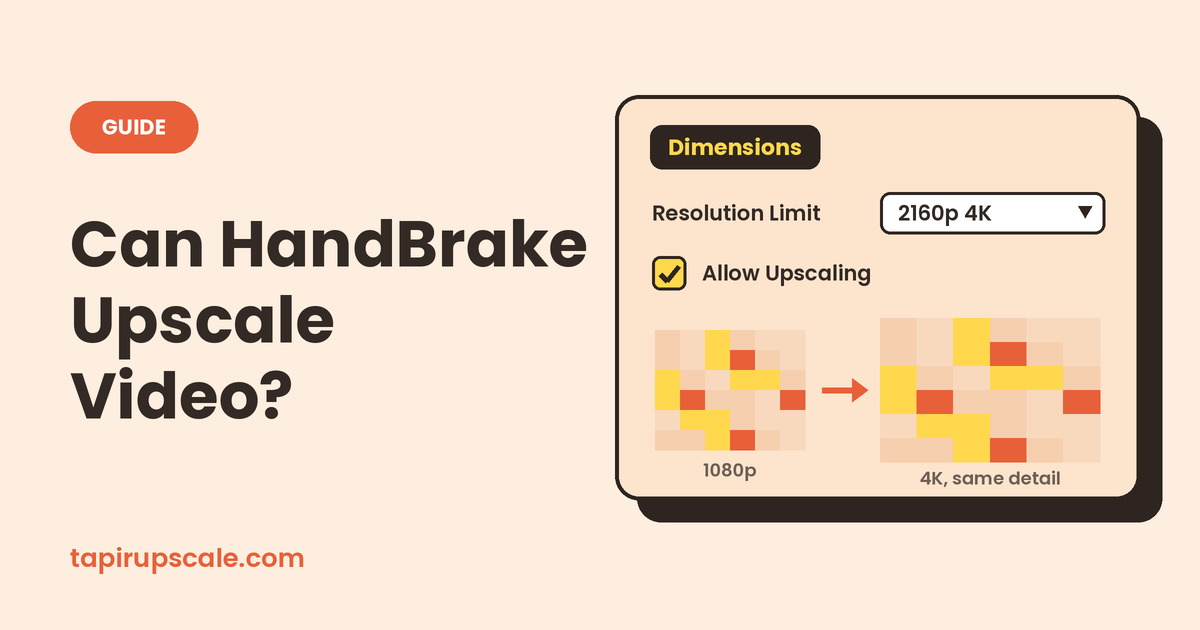
Yes, HandBrake can upscale video. Since version 1.4 there's an Allow Upscaling checkbox in the Dimensions tab that lets you export at a higher resolution than the source. What it does is a resize: HandBrake stretches the pixels you already have to the bigger frame. Faces, text and edges keep the same amount of detail, the file just gets larger.
If you want the extra pixels filled with real detail, an AI upscaler does that part. You can try one on your own video right here: add it below, compare a preview frame with the original, and download an MP4. It's free, with no sign-up and no watermark.
Want real detail, not just a bigger file?
Free in your browser, or on a cloud GPU with Pro.
- No sign-up
- No watermark
- Up to 4K

How to upscale in HandBrake, step by step 🛠️
These steps match HandBrake 1.4 and later on Windows, Mac and Linux. Older versions don't have the checkbox, so update first if you can't find it.
- Open Source and pick your video.
- Choose a preset close to your target, for example Fast 1080p30 or HQ 2160p60 4K HEVC Surround. Presets only cap the size, they don't upscale on their own.
- Open the Dimensions tab.
- Set Resolution Limit to the size you want: 1080p HD (1920 × 1080) or 2160p 4K Ultra HD (3840 × 2160).
- Tick Allow Upscaling. Without it, HandBrake quietly keeps the source size.
- Check the Scaled Size line. With Optimal Size on, HandBrake works out the final width and height from the aspect ratio, so a 16:9 1080p clip becomes 3840 × 2160. Turn Optimal Size off only if you need exact custom numbers.
- In the Video tab, lower the Constant Quality value a little (a lower RF means more bitrate). A bigger frame needs more bits, or compression eats the result.
- Click Start Encode.
HandBrake's own documentation is frank about it: upscaling is not recommended, though it can be useful in cases like uploading to YouTube.
Why the HandBrake upscale still looks soft 🔍
HandBrake scales with classic resampling. It calculates each new pixel from its neighbours, which gives smooth edges but no new information. That's why a 720p clip exported at 1080p looks the same when you watch both at the same size on screen.
There's one honest reason to do it anyway: YouTube tends to give higher-resolution uploads more bitrate and a better codec. A 1080p video uploaded as 4K can look a bit cleaner after YouTube compresses it, even if the upscale itself added nothing. An AI upscale gets you the same YouTube benefit plus the added detail. If you're unsure whether 4K is worth it for your video, see is upscaling 1080p to 4K worth it.
HandBrake for common upscale jobs 📋
| Job | What HandBrake gives you | Better route |
|---|---|---|
| 720p or 480p to 1080p | Bigger file, same softness | AI upscale 2x, then compress if needed |
| 1080p to 4K | 4K file, 1080p detail | AI upscale 2x |
| DVD to 1080p | Clean deinterlaced file, still soft | HandBrake to deinterlace, then AI upscale |
| Anime and cartoons | Stretched lines, slightly blurry | An AI model made for line art |
For the 720p and 480p case there's a dedicated walkthrough: upscale 720p or 480p video to 1080p.
The workflow that actually works: HandBrake plus AI 🔀
HandBrake is still very useful in an upscale job. It's just good at the steps around the upscale, not the upscale itself.
- Prepare the source in HandBrake, at its original size. Leave Allow Upscaling off. Use it to convert odd formats (VOB, MKV, old AVI) to MP4, crop black bars, and for DVDs and old TV recordings, turn on Deinterlace in the Filters tab so you don't get comb lines.
- Upscale the MP4 in the box on this page. Pick 2x: 480p becomes 960p, 720p becomes 1440p, 1080p becomes 4K. Compare the preview frame before you process the whole video.
- Optional: run the result through HandBrake again to shrink the file for sharing. Keep the new resolution and use a sensible quality value.
Long video, or a laptop that struggles? The free version runs on your own graphics card in the browser, so a long file can take a while and keeps your computer busy. Pro runs the same job on a cloud GPU at our highest quality. You see the exact price for that video before you pay, you can close the tab once the upload is done, and if a job fails the full price goes back to your credit. Credit starts at $5, never expires and isn't a subscription. Files can be up to 2 GB and an hour long, so split a full DVD movie into parts.
Best HandBrake settings when you do upscale ⚙️
If you only need the bigger frame (a player or platform that wants 1080p or 4K), these keep it as clean as HandBrake can:
- Encoder: H.265 (x265) for 4K, H.264 (x264) for 1080p if you need wide compatibility.
- Constant Quality: around RF 18–20 for x264 and RF 20–22 for x265. Lower is bigger and cleaner.
- Encoder preset: slow or medium. Faster presets waste bits on a big frame.
- Sharpen (Filters tab): a light LapSharp or UnSharp can make the resize look crisper. Keep it subtle, because strong sharpening adds halos.
- Anamorphic: Automatic for most files. DVDs use non-square pixels, so leave it on Automatic to keep the picture from looking squashed.
- Frame rate: Same as source. Upscaling changes resolution, not smoothness.
Quick answers
Does HandBrake have AI upscaling? No. HandBrake resizes with standard scaling filters. For AI upscaling you need a separate tool, like the free one on this page.
Can HandBrake upscale to 4K? Yes. Set Resolution Limit to 2160p 4K Ultra HD and tick Allow Upscaling. The file will be 4K, but the detail stays at the source level.
Why can't I upscale in HandBrake? Either your version is older than 1.4, Allow Upscaling is unticked, or the Resolution Limit is set at or below your source size.
Is HandBrake upscaling any good? For fitting a size requirement, yes. For making a video look sharper, no: HandBrake's own docs recommend against upscaling.
Can HandBrake upscale a DVD to 1080p? It can export one at 1080p. For a sharper result, deinterlace and convert the DVD in HandBrake at its original size first, then AI-upscale the file.
Does HandBrake improve video quality? Not on its own. It can't add detail that isn't there. It can avoid making things worse: deinterlacing, cropping and a sensible quality setting all help.
Got a video to sharpen?
Free in your browser, or on a cloud GPU with Pro.
- No sign-up
- No watermark
- Up to 4K