
How to Upscale Video in Premiere Pro and Keep It Sharp
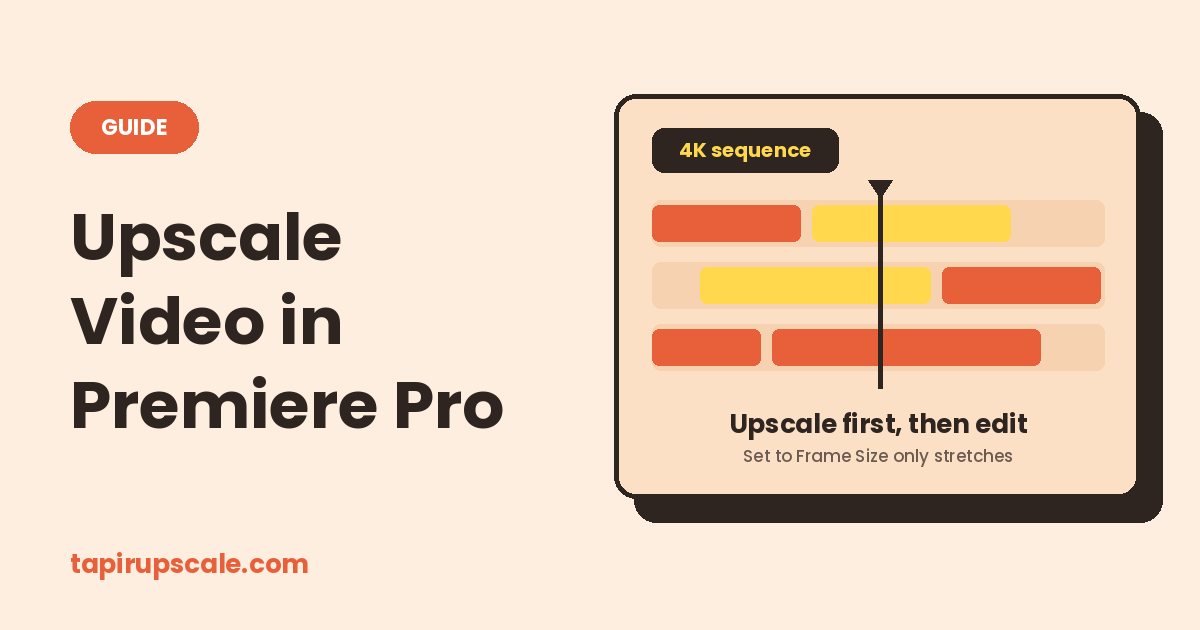
Premiere Pro can make a clip bigger, but its built-in scaling is a resize. Set to Frame Size and the Scale slider stretch the pixels you already have, so a 1080p clip on a 4K timeline fills the frame and looks as soft as before.
The quickest way to a sharp result is to upscale the clip before it goes on the timeline. Add it below, compare one frame with the original, and download an MP4 you can drop straight into your project. It's free, with no sign-up and no watermark.
Upscale the clip before it hits your timeline
Free in your browser, or on a cloud GPU with Pro.
- No sign-up
- No watermark
- Up to 4K

Upscale first, then edit in Premiere 🚀
- Upscale the original source file, not an export of your edit, in the box above. Pick 2x: 1080p becomes 4K and 720p becomes 1440p.
- Check the preview. For clips above 720p, choose the model described as best for live-action footage (or Pro) so the full AI model runs. The lighter models switch to a faster upscaler at that size.
- Import the new MP4 into Premiere.
- Starting a new edit? Drag the file onto the New Item button in the Project panel. Premiere creates a sequence that matches its resolution and frame rate.
- Already cut the low-res clip? Right-click it in the Project panel, choose Replace Footage and select the upscaled file. The new file has the same length, so your cuts stay in place. Then set the sequence to the new frame size in Sequence > Sequence Settings. If a clip now looks too small or too large, right-click it and choose Set to Frame Size.
- Add titles and graphics after. Premiere draws them at the sequence resolution, so they stay sharp.
Scrub through once after replacing footage to confirm picture and sound still line up.
Staying inside Premiere: Set to Frame Size 🎬
This is fine when a clip only has to fill the frame, like a few seconds of b-roll:
- Go to File > New > Sequence, open Settings, set Editing Mode to Custom and Frame Size to 3840 × 2160.
- Drag the clip in.
- Right-click the clip and choose Set to Frame Size.
- Export at the sequence resolution with a high bitrate.
Use Set to Frame Size, not Scale to Frame Size. Scale resamples the clip to the sequence size and hides the real scale value, which makes later zooms and reframing worse. To make Set the default, open Preferences > Media (Settings on Mac) and change Default Media Scaling.
What you get is a bigger frame with the same detail. Exporting a 1080p sequence at 4K does the same thing.
The After Effects route 🧩
Adobe's sharper option lives in After Effects, not Premiere:
- Create a 4K composition and add the clip.
- Apply Effect > Distort > Detail-preserving Upscale.
- Click Fit To Comp Width, then raise Detail until edges look crisp without halos.
- Render a file and import it into Premiere.
It holds edges better than a plain scale, and Adobe notes it is slower than normal scaling. Render a file instead of relying on the one-click round trip: Envato's 2026 walkthrough reports that Replace with After Effects Composition no longer works consistently in recent versions. It is also smarter interpolation, not an AI model, so it doesn't redraw texture.
Which one to use 🤔
| Situation | Use |
|---|---|
| The clip has to look sharper at the new size | Upscale first, then import |
| Short b-roll that only has to fill the frame | Set to Frame Size |
| A few clips, After Effects installed, no deadline | Detail-preserving Upscale |
| Long footage, or a laptop already busy with Premiere | Upscale with Pro |
Pro runs the upscale on a cloud GPU at our highest quality, so your computer stays free for editing. You see the price before you pay, you can close the tab once the upload is done, and if a job fails the full price goes back to your credit. Credit starts at $5 and never expires, with no subscription.
Quick answers
Does Premiere Pro have AI upscaling? Its built-in scaling is a resize. For AI upscaling you need a plugin or a separate tool, like the free one on this page.
Should I upscale before or after editing? Before. Upscale the source clip once, then cut, grade and add titles at the final resolution.
What's the difference between Set to Frame Size and Scale to Frame Size? Set changes the clip's Scale value and keeps the original frame. Scale resamples the clip to the sequence size. Use Set.
Editing in DaVinci Resolve instead? See how to upscale in DaVinci Resolve, including Super Scale and what the free version can do.
Can I upscale 720p to 1080p in Premiere? You can stretch it with Set to Frame Size on a 1080p sequence. For a sharper result, see upscale 720p to 1080p.
Got a video to sharpen?
Free in your browser, or on a cloud GPU with Pro.
- No sign-up
- No watermark
- Up to 4K